
Houghton Photo
Photo Panel - user guide
Guide v2.6.4 - 2026-09-25 - app v2.6.36
What this app does
Photo Panel takes a photograph of a panel - a coherent body of work assembled for a camera-club competition, an RPS distinction, or an exhibition - and returns a structured written critique. The critique treats the panel as a whole, not the individual images, and is the opinion of a single AI judge trained to be friendly, encouraging, and constructive.
The aim is to give you a starting point for reflection and discussion before you submit. It is not a substitute for a human judge or a mentor; it is one more perspective you can lean on when you are deciding which images to keep, swap, or re-order.
Accounts and credits
From V.1.8.0 (R7) Photo Panel runs on a credit model with sign-in required. Every account starts with five free critique credits. One critique = one credit. Credits never expire.
Sign up. Visit /signup and create an account with an email and a password (10 characters minimum), or use the "Sign up with Google" button. You'll be signed in automatically and taken straight to /app. A welcome email confirms your five free credits have landed.
Run a critique. Use the tool exactly as before - upload your panel, arrange the frames, click Start critique. The credit is deducted when you click Start, and the new balance shows in the top navigation. The /app screen, the panel layout PDF, and the Statement of Intent draft helper all require sign-in but only the critique itself costs a credit.
Low-credit warning. When your balance drops to two credits or fewer, a yellow banner appears at the top of the tool panel reminding you to top up before you run out. The critique still works normally - the banner is a heads-up, not a block.
Top up when you need more. If your balance hits zero, a "Buy more credits" button appears inside the tool. You can also click the credit count in the top navigation at any time. Both routes take you to /buy where you can pick:
- Starter Pack - £10 for 20 credits (one-time, 50p per critique).
- Top-up Pack - £5 for 10 credits. Buy as many packs in one go as you want (£10 for 20, £20 for 40, and so on).
Payments are processed by Paddle, who issue the receipt by email and act as the Merchant of Record for VAT. The card details never touch Photo Panel - Paddle handles the checkout overlay in your browser. See the pricing page for the full breakdown and the terms of service for the refund policy.
Sign out from the top navigation. Your credit balance is tied to your account, not the browser, so signing back in (anywhere) restores it.
Unlimited access. A small number of accounts - beta testers, friends, Joe himself - are flagged for unlimited access by the admin. If your account is unlimited the top navigation shows an "Unlimited" chip instead of a credit count, and critiques don't draw down a balance. Unlimited is set manually per email by Joe; if you think your account should have it and doesn't, send a quick note via the Feedback button at the bottom of any page.
Account data and erasure. Photo Panel stores your name, email, password hash (bcrypt), role, and credit ledger. Your panel images are never persisted - they're held in memory for the duration of the critique request and discarded the moment Claude responds. To download a copy of your data (GDPR Article 15) or erase your account (Article 17), email joe.houghton@gmail.com. See the privacy notice for the full data picture.
Before you begin
Photograph the whole panel as a single image, exactly as you intend to present it. Mount, frame, sequence, and orientation all matter to the critique. JPEG, PNG, and WebP are all supported, up to 4000 pixels on the longest side. Photo Panel compresses a large composite in your browser before upload - down to the AI's own analysis limit (2576 pixels on the longest side, about 3.75 megapixels) - so you don't need to resize a big export by hand. For the sharpest result, export at around that size yourself so each frame keeps its detail.
How to use it
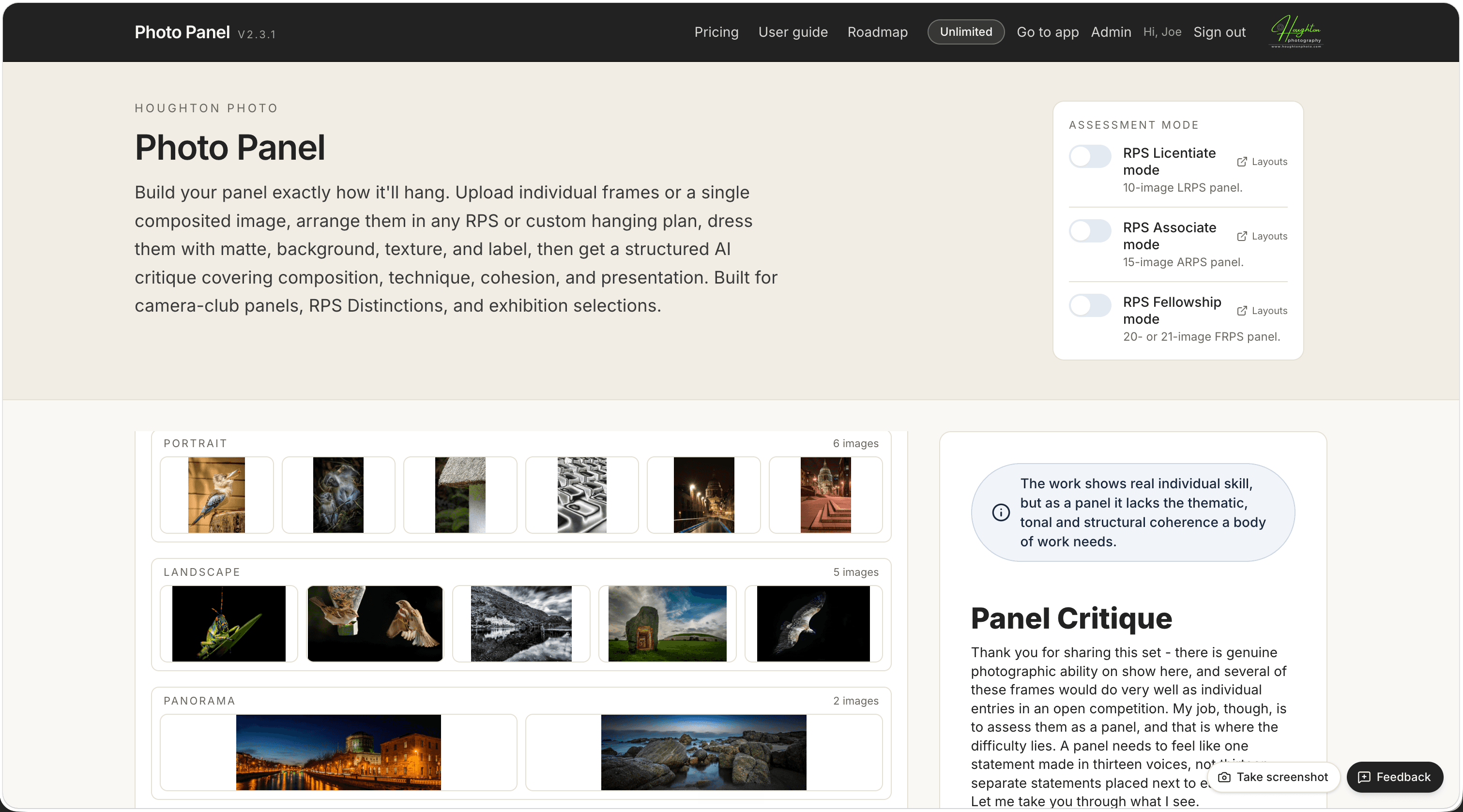
- Choose a mode. By default Photo Panel reviews against general panel principles - cohesion, flow, balance, selection. If your panel is aimed at a specific Royal Photographic Society Distinction, flip the matching toggle and the AI assesses against that distinction's published criteria:
- RPS Licentiate (LRPS) - 10 images, broad competence across technical, artistic, and communication criteria.
- RPS Associate (ARPS) - 15 images, a coherent body of work in a chosen genre or theme with a Statement of Intent the panel must demonstrably support.
- RPS Fellowship (FRPS) - 20 or 21 images, a distinguished body of work showing technical mastery and a fully-formed personal vision.
- Choose how you'll supply the panel. At the top of the left column there are two upload modes: Single composited image and Build from individual frames. Use the first if you already have your panel laid out in a single JPEG. Use the second to upload each frame individually, then arrange them using the hanging-plan picker and drag-and-drop reordering. The app composites the panel for you. Multi-frame mode gives the AI a richer read of each image because it sees every frame on its own, at up to 1568 pixels, rather than as one tile of a single composite. The two modes won't produce word-for-word identical critiques - the AI writes each one afresh, as a human judge would - but they should broadly agree.
- Upload your panel. Click the upload area or drop your file(s) onto it. In single-image mode the critique starts as soon as the image is received (general and LRPS) or once you click Start critique (ARPS and FRPS). In multi-frame mode the critique always waits for you to click Start critique once you're happy with the order.
- For ARPS and FRPS, supply a Statement of Intent. A text box appears below the upload area once you turn on Associate or Fellowship mode and upload an image. Paste in your Statement of Intent, or click Draft a Statement of Intent for me to have the AI write one based on what it sees in the panel - you can then edit the result before submitting. When you're happy, click Start critique. The Statement is sent to the AI alongside the panel and the critique assesses how convincingly the images support the intent.
- Add per-frame notes (optional). In multi-frame mode, a collapsible Per-image notes section appears below the frame grid once you have at least one image loaded. Click it to expand, and you'll see a small thumbnail and a text box for each frame (up to 500 characters per frame). Use it to give the AI context it can't read from the image alone - the technique you used, why you placed that image there, a technical issue you're aware of, or a question you want the critique to address. Notes are completely optional: leave them all blank and the critique runs exactly as before. When at least one note is present, a badge on the section header shows how many frames have notes, and each note is injected into the AI prompt immediately after the corresponding image so the critique can respond to it directly.
- Read the critique as it streams. The response appears progressively in the right-hand pane, formatted as Markdown. You can scroll while it writes.
- Toggle the mode at any point. If you started with general mode and want the RPS-specific view, flip the toggle - the old critique is replaced by a fresh one against the new criteria.
- Arrange your frames. In multi-frame mode, drag the thumbnails into the order you want the panel to hang. For more space, click Full screen to open the full-viewport organiser - images are shown at a comfortable size in the exact layout they will hang, and you can drag them directly into position. The full-screen organiser also carries the appearance controls (Matte, Background, Texture, Border) along the top, so you can adjust the look of the panel on the fly without dropping back to the small view. Press Escape, click X, or click outside the panel to return to normal view.
- Aspect-ratio pools. Uploaded images sort themselves into four pools by shape - Portrait, Square, Landscape, and Panorama - so you can see at a glance how the mix of frame shapes looks before you commit to a layout. Each pool shows its image count, only pools with images appear, and pools with more images take more room on screen. Drag-to-reorder works within each pool; classification follows the image dimensions themselves (portrait below 0.95 width/height, square 0.95-1.05, landscape 1.05-2.0, panorama 2.0 and wider).
- Flip an image. Hover over any frame thumbnail in the grid or the full-screen organiser - three icons appear at the top of the cell. The centred icon flips the image horizontally. The flip is applied to the stored file so Claude sees the mirrored version. Click it again to flip back.
- Choose a presentation layout. Below the frame grid the hanging-plan picker shows layout options for your panel. In RPS modes the heading reads RPS presentation layout - LRPS, - ARPS, or - FRPS and shows the official RPS templates for that distinction. In general mode the heading reads Panel layout and a Panel size selector appears to its right - choose how many images your panel will contain (2 to 30) and the picker shows all sensible hanging arrangements for that count. By default the picker opens with a 5-image panel using the 2+3 arrangement (2 frames on top, 3 on bottom) so you see a real layout the moment you switch to multi-frame mode - change the size or pick a different arrangement at any time. For example, 9 images offers five options: 3+3+3, 4+5, 5+4, 2+3+4, and 4+3+2. If your frame count is short, a note tells you how many more images are needed to fill the chosen layout - dashed placeholders show the target positions in the preview. Switching to an RPS mode with a lower image limit removes the excess frames automatically.
- Or use free placement. In general mode the layout picker also shows a Free placement button at the end of the row of templates. Pick it and the panel preview turns into a freeform canvas: drag images anywhere, resize them from the corner handles, overlap them, and reorder them front-to-back using the toolbar that appears above the selected image. The full-screen organiser gives you the same canvas at full size. Pick a row template again at any time to snap back to a grid - free positions are session-only and aren’t kept when you switch back. The freeform canvas is rendered as a single image for both the AI critique and the panel layout PDF, so Claude and any printed export see exactly what you have arranged. Free placement is intentionally only available in general mode - RPS distinctions require their published presentation templates.
- Set presentation appearance. Below the hanging-plan picker, three compact rows control how the panel is composited:
- Matte - choose None, Narrow (8 px), Standard (16 px), or Wide (32 px). When any matte width is active, three colour swatches appear (white, warm white, black) and a Keyline checkbox adds a fine 1 px rule between the image and the matte.
- Background - five swatches set the canvas colour that shows between and around tiles: white, warm white, mid grey, charcoal, or black.
- Texture - upload your own background image (JPEG, PNG, or WebP) to sit behind the panel instead of a solid colour. Useful for visualising a panel on linen, canvas, paper, wood, or a photograph of an actual gallery wall. Keep it modest in file size - unlike your panel frames, the texture isn't compressed automatically, and it shares the 4.5 MB per-request limit with them. The texture is resized to cover the full canvas. While a texture is set, the colour swatches still let you pick a fallback, but the texture overrides them in every output. Click Replace to swap it or the × to clear and return to the solid colour. Session only - the image is never uploaded to storage and clears on refresh.
- Border - choose None, 1 px, 2 px, or 4 px. When any border width is active, five colour swatches let you pick the border colour independently of the background.
- Download a PDF. Once the critique is complete, two download buttons appear. Download critique PDF produces a full branded A4 document with a panel thumbnail and the complete critique text. In multi-frame mode, Download panel layout PDF produces a separate A4 PDF showing the images composited into the chosen hanging plan - useful for printing or sharing the layout without the critique.
- Regenerate. If you want a second take on the same panel, click Regenerate critique. The AI may emphasise different points on a second pass.
Panel image counts matter
Each RPS Distinction requires a specific number of images. LRPS needs exactly 10, ARPS exactly 15, and FRPS either 20 or 21. If you upload a panel in one of the RPS modes and the image count is wrong, the critique will lead with a plain warning that the panel is not eligible for the chosen Distinction as submitted - the verdict pill will read Not there yet and the opening section will say so directly. The critique below the warning is still useful as a developmental exercise, but you'll need to remake the panel with the correct number of images before submitting.
The verdict pill
Every critique starts with a coloured oval verdict at the very top of the right-hand pane. It is the one-line plain-English summary of where the panel sits relative to the standard you asked it to be assessed against. There are three levels:
- Strong (blue) - the panel clearly meets or exceeds the standard. For RPS modes this means the AI judge would expect the panel to gain the Distinction.
- Developing (amber) - the panel is close to the standard but with specific weaknesses that need addressing. The critique below names them.
- Not there yet (slate) - the panel has significant work to do before it would reach the standard. The critique is still constructive, and the suggestions matter.
The verdict is one AI judge's honest reading and is included in the downloadable PDF so you can share it.
Saving critiques to your history
Once a critique is complete, a Save to history button appears alongside the PDF download button in the top-right action panel. Click it to archive the critique text and verdict to your account - no extra credits are used. The button changes to Saved to history and cannot be clicked again for the same critique.
All your saved critiques appear on the History page, linked from the top navigation when you are signed in. Each entry shows the assessment mode, date, verdict pill, and a preview of the critique. Click Read full critique to expand it. From the same card you can:
- Download as PDF. Re-generates a branded A4 PDF from the saved text at any time, even long after the original session ended. Note that the panel image is not stored, so the PDF will not include the panel thumbnail.
- Delete. Click Delete, then confirm, to remove the entry permanently. There is no undo.
Saving is session-specific - if you close the tab before clicking Save to history, the critique is not saved automatically.
Reading the critique sensibly
The model is friendly by design - it leads with strengths before it suggests changes. Don't mistake that warmth for an absence of critique; the suggestions are where the value sits. Look for:
- Sequencing. Whether the order of images supports the panel's arc or fights it.
- Selection. Whether any image is doing less work than the others and might be swapped.
- Tonal and colour balance. Whether the panel reads as a unified body of work or as a set of unrelated images.
- Edges and rhythm. How the eye moves across the panel and where it gets caught.
Limits and rate limits
To keep the running costs sane, each visitor can request up to 5 critiques per hour and 20 per day. Hitting either limit returns a friendly message with a wait time. The limits reset on a rolling window.
Photo Panel uses Anthropic's Claude Opus model. Critiques typically take 30 to 90 seconds to complete. A poor connection can extend that; refreshing the page and re-uploading is safe.
Privacy at a glance
Panel images are never stored. Each image is sent to Anthropic for the duration of the critique, then discarded. If you use the Save to history feature, the critique text and verdict are stored against your account in the Photo Panel database - but never the image itself. You can delete any saved critique at any time from the History page. Full details are on the privacy page.
Giving feedback
The blue Feedback button at the bottom of every page opens a form. Tick a category (feature suggestion, bug report, or general feedback), describe what you want Joe to know, and optionally attach screenshots. If you supply your email address Joe will write back when a suggestion ships. Feature suggestions go on the public roadmap.
Troubleshooting
| What you see | What to try |
|---|---|
| This upload is larger than the 4.5 MB limit | Every request to Photo Panel's server - the whole panel, not each file individually - is capped at 4.5 MB. For a single composited image: Photo Panel compresses it in your browser before upload, so this should be rare - if you still see it, export at around 2600 pixels on the longest side. For a multi-frame panel: frames are compressed automatically (more so for larger panels), but the background texture isn't - remove or shrink it. In general mode you can also use fewer frames; RPS modes need an exact count, so the texture is the only lever there. |
| Image dimensions exceed the 4000 px limit | Resize the image. The AI sees at most 2576 pixels on the longest side (about 3.75 megapixels) anyway, so larger files only slow the upload. |
| Unsupported image format | Re-export as JPEG, PNG, or WebP. HEIC from iPhone needs to be converted; the Files app on iOS can do it. |
| Critique stops half-way | Click Regenerate critique. If it keeps stopping, use the Feedback button and Joe will look at it. |
| Hit the rate limit | Wait the time shown. The hourly limit resets every 60 minutes on a rolling window. |
Version history
| Version | Date | Changes |
|---|---|---|
| v2.6.4 | 2026-09-25 | Large RPS panels (20-21 frame Fellowship panels especially) now compress more before upload, so a full panel is far less likely to hit the 4.5 MB per-request limit. The troubleshooting guidance for that error is corrected too - removing or shrinking a background texture is the only real fix for an RPS panel, since those modes need an exact frame count; "use fewer frames" only applies in general mode. |
| v2.6.3 | 2026-09-25 | Follow-up correction to the fix below: the 4.5 MB troubleshooting guidance wrongly said individual frames "upload separately" - they don't, a multi-frame panel is still sent as one request, so the guidance now gives the right fix for each upload mode. Removed a troubleshooting row describing a 10 MB server error that can never actually happen (any file that size is always caught by the 4.5 MB limit first), and corrected the background texture description, which isn't compressed automatically and shares that same 4.5 MB limit with your panel frames. |
| v2.6.2 | 2026-09-25 | Fix: uploading a single composited image as one large file could fail with an unhelpful error, because a request to Photo Panel's server can't exceed 4.5 MB regardless of the 10 MB per-file limit quoted elsewhere in this guide. Photo Panel now compresses a large composite in your browser before upload, so a normal export no longer hits that ceiling. If you do see the error, the message now names the real limit and points at the fix. Thanks to Fintan Healy for reporting it. |
| v2.6.1 | 2026-09-25 | Composite critiques now see far more detail. A single composited image is now analysed at up to 2576 pixels on the longest side (about 3.75 megapixels), up from 1600 pixels, so each frame in a 10-image panel carries more than twice the detail it did. At the old size the AI could misread individual frames - for example taking a monochrome image for selective colour - and its verdict could differ from the one you'd get by uploading the same frames individually. Thanks to Fintan Healy for spotting the inconsistency. Export your composite at around 2600 pixels on the longest side to get the full benefit. |
| v2.6.0 | 2026-05-24 | Password reset and self-service account management. If you signed up with email and password and have forgotten it, click 'Forgot your password?' on the sign-in page. Enter your email and you'll receive a reset link (valid for 30 minutes). Google users don't need this - just continue with Google. New Account page (/account, linked in the top nav): shows your name, email, and role. Under 'Your privacy rights', you can download all the data Photo Panel holds about you as a JSON file (name, email, credit balance, purchase history, usage stats), or delete your account entirely. Deletion is permanent - enter DELETE MY ACCOUNT to confirm. Payment records are retained for six years as required by Irish tax law but are anonymised so they don't identify you. |
| v2.5.0 | 2026-05-24 | Per-image notes. When building a panel from individual frames, a collapsible 'Per-image notes' section appears below the panel grid. Click to expand it and you'll see a thumbnail and a text box for each image. Anything you write is included in the critique prompt so the AI judge sees your context - useful for notes like 'deliberately high-key treatment' or 'unsure whether this fits the sequence'. Notes are optional, session-only, and cleared when you remove a frame. Improved error messages: if a panel is too large to process, or the request times out on a very large FRPS panel, you now see a specific message with actionable guidance instead of a generic error. Panel tiles now show a drag-handle icon and frame number at all times, making it clear every tile is draggable to reorder. |
| v2.4.2 | 2026-05-17 | Landing page hero now shows a real screenshot of Photo Panel in RPS assessment mode, in place of the placeholder coloured-squares mock. The same screenshot is included in the user guide under "How to use it" so you can see the panel-on-the-left, critique-on-the-right layout before you upload. |
| v2.4.1 | 2026-05-17 | Clicking the Photo Panel wordmark in the top nav now always returns you to the landing page at /, whether or not you're signed in. Signed-in visitors stay signed in and see a Back to the app button in the hero plus a Top up credits CTA at the foot of the landing page - so the landing page works as a quick re-entry point rather than a sign-in trap. |
| v2.4.0 | 2026-05-17 | Saved critique history. After any critique completes, a 'Save to history' button appears alongside the PDF download button. Click it to archive the critique text and verdict to your account. All saved critiques appear on the History page (linked in the top nav when signed in). Each entry can be expanded to read in full, downloaded as a fresh branded PDF, or deleted. The panel images themselves are not stored - only the critique text and verdict are saved. No extra credits are used for saving. |
| v2.3.1 | 2026-05-17 | Low-credit warning and out-of-credits CTA. When your balance drops to two credits or fewer, a yellow banner now appears at the top of the tool panel as a heads-up. When you hit zero and try to start a critique, the error area shows a dedicated 'Buy more credits' button rather than a plain text error. Pricing page improvements: signed-in users now go directly to /buy when they click a purchase CTA, rather than being routed through the sign-up flow again. Paddle is now described as a certified PCI-DSS Level 1 processor on the pricing page, with a clear note that Photo Panel never sees your card details. |
| v2.3.0 | 2026-05-17 | Admin dashboard enhancements. The /admin stats bar now has a fifth card showing total paid users and the conversion rate (paid / total). Below the stats, a 16-week signups chart shows new user registrations week-by-week, with Monday-anchored buckets and charcoal bars. No external chart library - pure SVG. |
| v2.2.0 | 2026-05-17 | Feedback credits and contributor leaderboard. Signed-in non-unlimited users now earn 2 credits when they submit feedback via the feedback button, with a thank-you email. If Joe ships the suggestion, a further 5 credits are awarded and a second email is sent. All feedback is persisted and admins can mark submissions as shipped from /admin. The public contributor leaderboard at /leaderboard shows users whose feedback has shipped. Pre-registration grants: Joe can now grant credits or unlimited access to an email address before the user has signed up - the grant applies automatically on first login. Admin notifications: Joe receives an email for every new user registration and every Paddle purchase. |
| v2.0.0 | 2026-05-16 | Admin can now grant additional credits to specific email accounts, or flip an account into unlimited mode for beta testers and friends. A new "Grant credits and access" panel sits at the top of /admin with two forms: one to add (or claw back) a specific number of credits, and one to mark an email as unlimited. Unlimited users see an "Unlimited" chip in the top nav in place of the credit count, and their critiques no longer decrement a balance. The users table on /admin gains an Access column showing each account's state. The hero strapline on the landing page now reads "An honest read, by an objective AI judge." Version cut to 2.0.0 to mark the close of the R7 production expansion and the start of the post-launch admin tooling phase. |
| v1.8.0 | 2026-05-16 | R7 - production expansion. Photo Panel now has user accounts (email/password or Google), a credit model (five free critiques on signup, £10 for 20 credits, 50p per credit on top-up), and a marketing landing page at the root URL. The tool itself has moved to /app and now requires sign-in. New pages: /signup, /login, /pricing, /terms, /buy (gated to signed-in users). The privacy notice has been rewritten to reflect that we now collect account data (name, email, password hash) and process payments through Paddle. Existing critique behaviour is unchanged - each critique deducts one credit, every other feature works the same. GDPR Article 15 (subject access) and Article 17 (erasure) are available on request to joe.houghton@gmail.com. |
| v1.7.19 | 2026-05-16 | Two new panel appearance controls. Image scale slider (50% to 100%) lets you make images smaller within each cell, adding white space around every frame without changing the panel's overall dimensions - useful for a more spacious, gallery-style presentation. Panel label controls let you add a title and/or author name above or below the panel, with font size (12 to 28 pt), text colour, and opacity options. Both settings carry through to the composited image that Claude analyses, the panel layout PDF, and the critique PDF. |
| v1.7.18 | 2026-05-16 | Uploaded images now sort themselves into four aspect-ratio pools - Portrait, Square, Landscape, and Panorama - both on the main upload grid and in the full-screen organiser's overflow strip. Each pool shows its image count, only pools containing images appear, and pools with more images grow to take more room. Thresholds: portrait below 0.95 width/height, square 0.95-1.05, landscape 1.05-2.0, panorama 2.0 and wider. Drag-to-reorder works within a pool; dragging between pools is disabled (aspect-ratio classification is derived from the image itself). |
| v1.7.17 | 2026-05-16 | Bug fix: background colour and uploaded texture now show correctly in the full-screen panel organiser grid view (the bug only affected the standard grid layout - the free-placement canvas already worked). Feedback buttons moved to the bottom-right corner and made slightly smaller. |
| v1.7.16 | 2026-05-16 | Full-screen panel organiser made much taller. The top header was three stacked rows (title / layout buttons + panel size, then Matte / Background / Texture / Border on four separate rows). All of that now flows on a single tight header row, freeing up roughly 100 pixels of vertical space for the actual panel. The "Extra frames" pool at the bottom (used when you have more frames than the chosen layout slots) was also shrunk - thumbnails dropped from 96 px to 64 px and the section heading is tighter. |
| v1.7.15 | 2026-05-16 | Background texture now has an opacity slider (0 to 100%). Drag it down to let the panel's background colour show through the texture - useful for soft paper or canvas effects, or to fade a strong texture into the wall colour. The slider sits beside the texture thumbnail and the Replace/× buttons. The chosen opacity is applied to the on-screen preview, the image sent to Claude for critique, and the panel-layout PDF. The Regenerate button under the critique now reads "Re-generate critique" so the action is clearer. |
| v1.7.14 | 2026-05-16 | Roadmap refreshed - four new shipped items added (Photo Panel rebrand, smart defaults for multi-frame upload, Anthropic prompt caching for cost reduction, Lightroom + Tauri companion rename) - plus this user guide updated to describe the new defaults: switching to "Build from individual frames" now opens with a 5-image panel in the 2+3 layout instead of an empty placeholder. |
| v1.7.13 | 2026-05-16 | Default hanging plan for the 5-image general-mode panel is now 2+3 (2 frames on top, 3 on bottom). Pairs with the V.1.7.10 default panel size of 5 so the first thing you see in multi-frame mode is a real laid-out grid. |
| v1.7.12 | 2026-05-16 | Behind the scenes: enabled Anthropic prompt caching on every Claude call. Repeat critiques on the same uploaded panel within five minutes now pay roughly 10% of the original API cost on the cached part of the prompt - which means tighter cost control without changing the critique quality. |
| v1.7.11 | 2026-05-16 | Nav and Footer now align with the home-page hero on wide screens - the "Photo Panel" wordmark in the top bar, the "HOUGHTON PHOTO" eyebrow, and the "Photo Panel" heading below all share the same left edge. |
| v1.7.10 | 2026-05-16 | Multi-frame upload defaults polished: panel size now defaults to 5 images, and the dropzone copy says "Click or drop individual panel images - maximum 30 images" so the upper bound is visible up-front. Photo Panel is also now live on its own domain (https://photo-panel.app); the old panel-critique.vercel.app URL still works as an alias. |
| v1.7.9 | 2026-05-16 | Final consistency pass on the rename. Bundle identifiers for both the Tauri companion and the Lightroom plugin are now `com.houghtonphoto.photo-panel` (with hyphen, matching the slug used everywhere else). The companion's save directory is now `~/Pictures/photo-panel/` (lowercase, hyphenated). If you previously installed the V.1.7.8 build, any saved panels in `~/Pictures/Photo Panel/` can be moved manually to the new folder. |
| v1.7.8 | 2026-05-16 | Lightroom Classic plugin and Tauri desktop companion renamed from Panel Critique to Photo Panel. The plugin folder is now `photo-panel.lrplugin`, the export service is labelled "Send to Photo Panel", the bundle identifier is `com.houghtonphoto.photopanel`, and the companion's embedded URL now points at `https://photo-panel.app`. Saved panels are written to `~/Pictures/Photo Panel/`. If you installed an earlier build of the companion or LR plugin, remove it and re-install from the new folder names. |
| v1.7.7 | 2026-05-16 | The app has been renamed from Panel Critique to Photo Panel. All screens, page titles, PDFs, and emails now show the new name. |
| v1.7.6 | 2026-05-16 | Appearance controls (Matte / Background / Texture / Border) are now available inside the full-screen panel organiser too, so you can adjust the look of the panel on the fly without dropping out of the full-screen view. New "Texture" row lets you upload your own background image (JPEG, PNG, or WebP up to 10 MB) to sit behind the panel instead of a solid colour - useful for visualising a panel on linen, canvas, paper, wood, or a photo of an actual gallery wall. The texture is applied to the in-app preview, the image sent to Claude for critique, and the panel-layout PDF. Session-only, never uploaded to storage. |
| v1.7.5 | 2026-05-16 | Free placement layout for general-mode panels. A new "Free placement" button now sits alongside the row-based layout options. Switch to it and the panel becomes a freeform canvas - drag images anywhere, resize them from the corner handles, overlap them, and reorder them front-to-back with the toolbar buttons. Works in both the inline panel preview and the full-screen organiser, and the freeform canvas is rendered as a single image for both the AI critique and the panel layout PDF, so the critique sees exactly what you have arranged. |
| v1.7.4 | 2026-05-16 | Lightroom Classic companion app built and ready. The desktop companion (Photo Panel.app) now listens on port 8742 for images exported from Lightroom via the Send to Photo Panel export service. Images received before the web app finishes loading are buffered and loaded automatically once the page is ready. |
| v1.7.3 | 2026-05-16 | Panel size selector in the full-screen organiser. When in general mode, the Panel size dropdown now appears in the full-screen organiser header bar alongside the layout buttons, so you can change the target image count without closing the organiser. |
| v1.7.2 | 2026-05-16 | Panel background colour and outer border controls in multi-frame mode. Five background swatches (white, warm white, mid grey, charcoal, black) are always visible below the Matte row. A Border row offers None, 1 px, 2 px, or 4 px weights; choosing any non-zero weight reveals a second set of five swatches for the border colour. Both settings are applied to the composited panel that Claude sees, the layout preview, and the layout PDF. |
| v1.7.1 | 2026-05-16 | Mattes and keylines in multi-frame mode. Below the hanging plan picker, a compact Matte row lets you choose None, Narrow (8px), Standard (16px), or Wide (32px). When any matte width is selected, three colour swatches appear (white, warm white, black) plus a Keyline checkbox that adds a 1px border between the image and the matte. The matte is applied to every frame before compositing, so the panel preview, the critique composite sent to Claude, and the layout PDF all reflect the chosen presentation. |
| v1.7.0 | 2026-05-16 | Hanging plan selector for general (non-RPS) panels. In multi-frame mode without an RPS mode active, a 'Panel size' selector (2-30 images) now appears beside the 'Panel layout' heading. Choosing a size shows curated thumbnail layouts for that count — for example, 9 images offers five arrangements: 3+3+3, 4+5, 5+4, 2+3+4, and 4+3+2. Less common counts fall back to auto rows. MAX_FRAMES raised to 30. Lightroom Classic plugin and Tauri desktop companion scaffolded (see _lr-plugin/ and _tauri-companion/ in the repository) — requires a separate build step before use. |
| v1.6.7 | 2026-05-15 | User guide updated for all features shipped since V.1.5.0: full-screen organiser, horizontal flip, presentation layout picker (mode-aware heading, bold-amber count, auto-remove excess frames), Download panel layout PDF, and Download critique PDF rename. Roadmap updated with 5 new completed items (IDs 16-20). TODO.md and HANDOVER.md refreshed to V.1.6.6. |
| v1.6.6 | 2026-05-15 | Fix: 'Draft a Statement of Intent' now works reliably for panels with many frames. Images are compressed to 800 px before upload for the SoI request (vs 1568 px for the critique), keeping the payload well within platform limits while giving Claude enough context to draft the statement. |
| v1.6.5 | 2026-05-15 | Horizontal flip in the panel editor. Hovering over any frame in the grid or full-screen organiser now reveals a flip icon centred at the top of the cell (between the frame number and the X). Clicking it mirrors the image horizontally — the flipped version is stored and sent to Claude for the critique, so the AI sees exactly what you see. |
| v1.6.4 | 2026-05-15 | Mode-aware presentation layouts. The layout picker heading now reads "RPS presentation layout - LRPS", "- ARPS", or "- FRPS" depending on which assessment mode is active. Toggling a mode immediately shows the relevant RPS layouts, even before all images are loaded — dashed placeholders show the target positions. The image count is bold-amber when the current frame count falls short of what the mode requires. Switching to a mode with a lower image limit automatically removes the excess frames from the end of the list. |
| v1.6.3 | 2026-05-15 | Download panel layout PDF. After a multi-frame critique, a second download button appears in the Critique Ready panel: "Download panel layout PDF". This generates a branded A4 PDF showing the images composited into the chosen RPS hanging plan — useful for printing or sharing the layout without the critique text. |
| v1.6.2 | 2026-05-15 | Fix: critique now generates reliably for multi-frame panels. Images are compressed in the browser to a maximum of 1568 px at JPEG quality 0.82 before upload, keeping the total request body well within Vercel's platform limit. Visually identical to before — the server applied the same normalisation anyway. |
| v1.6.1 | 2026-05-15 | Full-screen organiser header layout. "Organise panel frames" now sits to the left of the plan buttons, and the whole group is centred horizontally in the header bar with the close button held at the far right. |
| v1.6.0 | 2026-05-15 | Full-screen organiser polish. "Organise panel frames" heading is now centred in the header bar. Cell borders removed for a cleaner look. Frame number badges hidden by default and fade in on hover. |
| v1.5.9 | 2026-05-15 | Frame number badges in the grid are now hidden by default and fade in on hover, keeping the grid uncluttered while still identifying each image position when needed. |
| v1.5.8 | 2026-05-15 | Display fixes for frame thumbnails. The hanging-plan picker thumbnails now correctly centre shorter rows (e.g. T3 · 3+4+3, T5 · 2+4+4). The frame grid in the upload card now shows the full image in each cell rather than cropping to fill it. |
| v1.5.7 | 2026-05-15 | Centred hanging plan rows. In both the full-screen organiser and the in-aside panel preview, shorter rows are now centred horizontally rather than left-aligned. All rows use the same fixed cell width (calculated from the widest row), so images in a 3-image row are the same size as those in a 5-image row. |
| v1.5.5 | 2026-05-15 | Official RPS presentation layouts. Panel layout options now match the layouts published by the RPS for each distinction. LRPS offers 6 layouts (T1 5+5, T2 one row, T3 3+4+3, T4 3+3+4, T5 2+4+4, T6 2+3+5). ARPS offers 5 layouts (T1 5+5+5, T2 3+5+7, T3 7+8, T4 8+7, T5 one row). FRPS offers 4 layouts for 20 images (T1 10+10, T3 7+7+6, T4 6+7+7, T5 one row) and 2 for 21 images (T2 7+7+7, T5 one row). A small Layouts link beside each RPS mode toggle in the top panel opens the relevant RPS template page. |
| v1.5.4 | 2026-05-15 | Image display fixes. In the full-screen organiser, images are now shown with object-contain so the full image is visible within each cell — landscape images are no longer cropped to portrait. The in-aside panel preview has been rebuilt as a client-side plan-layout grid: images are arranged in the selected hanging-plan row pattern and update instantly when you change the plan, rather than waiting for a critique run to generate a server composite. |
| v1.5.3 | 2026-05-15 | True full-screen panel organiser with plan-based grid. The full-screen view now occupies the entire viewport (no constrained modal). Images are laid out in the actual hanging-plan arrangement - rows of 5 with centring for shorter rows - so you can see exactly how the panel will hang while you drag frames into position. All RPS hanging plans are offered regardless of which mode is selected: LRPS 2x5, ARPS 3x5, FRPS 4x5, and both FRPS 21-image arrangements (centred 11th and centred bottom image). Any extra frames beyond the plan sit in an overflow strip at the bottom of the screen and can be dragged into the grid. |
| v1.5.2 | 2026-05-15 | Full-screen panel organiser. When building a panel from individual frames, a 'Full screen' button appears in the frame grid header. Click it to expand the grid and hanging-plan picker into a full-screen overlay so you can reorder images without the critique column competing for space. Click the X button, press Escape, or click outside the panel to return to the normal layout. |
| v1.5.1 | 2026-05-15 | Multi-image mode polish. Left column now takes two-thirds of the screen so the panel grid fits comfortably, with the critique flowing in the remaining third at tighter line-spacing. Hanging plan picker added below the grid: shows a thumbnail of each available plan and, for 21-image FRPS panels, lets you choose between the centred 11th image and the trailing centred image arrangements. Bug fix: Download as PDF now works in multi-image mode (the export route receives the frames directly and composites the panel server-side rather than relying on a state-passed data URL). |
| v1.5.0 | 2026-05-15 | Multi-image panel upload. New upload mode lets you add individual panel frames, drag-and-drop to re-order them, and have the AI critique each frame at full resolution rather than reading a single composited image. The app composites the frames into a standard hanging plan (LRPS 2x5, ARPS 3x5, FRPS 4x5 or 5x5+1) for the preview and the PDF. The single-image upload path still works for users who already have a composited panel. |
| v1.4.1 | 2026-05-15 | Developer experience fix - Content-Security-Policy now allows 'unsafe-eval' in development only, so Next.js Fast Refresh stops surfacing a CSP error overlay. Production CSP unchanged. |
| v1.4.0 | 2026-05-15 | RPS image-count check: each Distinction has a required panel size (LRPS 10, ARPS 15, FRPS 20 or 21). The AI counts the panel's visible images first, and if the count is wrong for the requested Distinction the critique leads with a plain warning that the panel would not be eligible as submitted. FRPS mode now reads 20 or 21 to match the published RPS guidance. |
| v1.3.3 | 2026-05-15 | Left column (upload card, Statement of Intent, critique-ready buttons) now pins to the top of the viewport as you scroll - the critique on the right scrolls independently, so the panel image stays visible while you read. |
| v1.3.2 | 2026-05-15 | Download as PDF and Regenerate buttons moved from the left aside into the top hero panel, sitting between the description text and the RPS mode toggles. They only appear once a critique has been generated and so are now far more visible at the point they become relevant. |
| v1.3.1 | 2026-05-15 | PDF redesigned: charcoal banner with HP logo across the top of every page; title block (kicker, large title, mode + timestamp) on page one only with a proper divider before the verdict pill; refined typography, larger thumbnail frame, italic disclaimer block with its own eyebrow, and a fuller footer. |
| v1.3.0 | 2026-05-15 | RPS mode toggles moved into the top hero panel; uploaded panel image now sits flush with the top of the critique pane. Every critique opens with a coloured verdict pill - Strong, Developing, or Not there yet. PDF re-formatted with the verdict pill, full date and time in the header, and 'Developed by Joe Houghton - houghtonphoto.com' attribution in the footer. |
| v1.2.2 | 2026-05-15 | Current app version now shown next to the Photo Panel wordmark in the top nav, matching the convention used in Joe's other apps. |
| v1.2.1 | 2026-05-15 | Layout balanced to 50/50 left/right; uploaded panel preview enlarged to fit the wider column. Abbreviation 'SoI' replaced with 'Statement of Intent' in user-facing copy. |
| v1.2.0 | 2026-05-15 | ARPS and FRPS now require a Statement of Intent. Paste your own, or have the AI draft one from the panel. Critique only starts when you click Start critique. |
| v1.1.0 | 2026-05-15 | RPS Associate (15 images) and Fellowship (20 images) modes added alongside Licentiate. Three RPS toggles now sit one above the other; turning any on turns the others off. |
| v1.0.2 | 2026-05-15 | RPS Licentiate toggle re-rendered using inline-flex track + translating thumb so the switch behaves correctly across Tailwind v4 builds. |
| v1.0.1 | 2026-05-15 | Top nav background flipped to HP charcoal so the white-on-black HP logo reads cleanly; nav text bumped to high-contrast paper-tone. |
| v1.0.0 | 2026-05-15 | First public release. Deployed at panel-critique.vercel.app with full security headers. |
| v0.6.0 | 2026-05-15 | Security headers and PII audit - CSP, HSTS, X-Frame-Options, Permissions-Policy. |
| v0.5.0 | 2026-05-15 | Public roadmap, printable user guide, in-app feedback widget with screenshot capture, privacy page. |
| v0.4.0 | 2026-05-15 | PDF export of critique - branded A4 document with embedded thumbnail. |
| v0.3.0 | 2026-05-15 | Core panel critique loop - upload, streaming response from Claude, RPS Licentiate mode, rate limiting. |
| v0.2.0 | 2026-05-15 | Houghton Photo brand shell, Inter web font, Nav and Footer. |
| v0.1.0 | 2026-05-15 | Initial scaffold - Next.js, Houghton Photo branding, project docs. |